ATS-Friendly Resume Format: 4 Rules and a Plain-Text Test
ATS-friendly resume format: use one column, clear headings and real text, then test the file before upload. See four rules and a quick plain-text check.
By Ultimate Resume Kit by Cosmo Suite · Editorial policy
Published · 7 min read
A resume can look tidy on your screen and still arrive in an application system with its sections out of order. The safest starting point is simple: use one column, real text, familiar headings and a file type the employer accepts. Then check the text your file actually contains.
That last step takes a minute and gives you a useful signal before you submit. It cannot tell you exactly how every employer's system will handle the file, but it can catch problems such as missing text or a reading order that jumps between sections. Here are four format rules and a plain-text test you can run on your own resume.
Key takeaways:
- Keep essential information in one column and in a clear top-to-bottom order.
- Use selectable text and standard labels such as Experience, Education and Skills.
- Follow the employer's upload instructions for PDF or DOCX.
- Copy the exported file into a plain-text editor, then review the application's parsed fields after upload.
ATS-friendly resume format at a glance
An ATS-friendly resume format gives a hiring system a clear sequence of text to read. Use this table as a quick review before you adjust fonts or colors.
| Rule | What to do | Quick check |
|---|---|---|
| Layout | Keep the main content in one column | Read down the page without switching between sidebars |
| Text | Use real, selectable words | Select and copy a paragraph from the exported file |
| Headings | Choose familiar section names | Look for Experience, Education, Skills and Projects |
| File | Follow the application instructions | Confirm the file type before uploading |
CareerOneStop recommends a simple single-column layout and warns that tables, text boxes, columns, images and graphics may scramble content. Canva's resume FAQ also advises clear headings and avoiding text boxes, tables and images. Those are practical defaults, not a promise that every applicant tracking system works the same way.
Keep the reading path in one column
A single column puts each section in a predictable order: contact details, summary if you use one, experience, education and other relevant sections. The reader and the parser can follow the same path from the top of the page to the bottom.
Sidebars can make a resume feel compact, but they create another reading path. If a system reads across the page instead of down the main column, it may place a skills list between a job title and its dates. Greenhouse lists columned layouts, tables, headers, footers and text boxes among formatting issues that can cause a partial parse in its recruiting software.
Keep essential details in the main column. Put your name and contact information in the document body, then give each section a clear heading. Avoid using an icon as the only label for an email address or phone number. If you include a visual element, the words that identify your skills or experience should still appear as text.
A clean layout does not need to look unfinished. Use spacing, a restrained heading style and a consistent font to make the sections easy to scan. Keep decorative rules away from the words, and check that a line break has not split a name, date or email address.
Use standard headings and real text
Use headings that tell a person what the next section contains. “Work Experience,” “Experience,” “Education,” “Skills,” “Projects” and “Certifications” are easier to interpret than labels such as “Where I Have Been” or “My Toolkit.” Keep the wording accurate to your background and the role.
Type the content into the document instead of placing it inside a picture. A PDF may look like a page of text while actually containing a flat image. Try selecting a sentence with your cursor. If you cannot highlight and copy it, the file may not contain a text layer for a parser to read.
The University of Texas at Dallas Career Center recommends standard section headings and warns against photos, text boxes and column layouts. Greenhouse also lists image-based resumes and graphics among possible reasons for a failed parse. The advice is about reducing common formatting risks; an employer may still need to review or correct information after an upload.
For dates, use one clear pattern throughout. Write the month and year consistently, such as “Jan 2023 to May 2025,” and place each date beside the job or degree it describes. Use normal text for bullets. If a role has an acronym that may be unfamiliar, spell it out once before using the shorter form.
Choose the file type the application requests
There is no universal file extension that overrides an employer's instructions. If the application asks for a Word document, upload a DOCX. If it asks for PDF, submit a PDF. If it accepts both, choose a text-based file and inspect the result in the portal.
CareerOneStop recommends PDF unless an employer asks for another format, because PDF can preserve the page layout. Greenhouse lists .docx and .pdf as document examples and notes that an image upload can cause a parse problem. Other employers may configure their forms differently, so treat the application instructions as the final word.
Before uploading, open the exported file on a second screen or device if you can. Check that page breaks did not move a heading away from its section and that no bullet or date disappeared. If you export to PDF, confirm that you can select the text. If you export to DOCX, reopen that exact file in Word or Google Docs and scan its order again.
Run a plain-text test before you upload
A plain-text test checks whether the exported file contains readable words in a sensible order. It is a quick screen for formatting problems, not an ATS simulator and not a hiring prediction.
- Export the file you plan to send. Test the same PDF or DOCX you will upload, not an earlier working copy.
- Select and copy the document text. If selection does not work, return to the source file and check whether the page was exported as an image.
- Paste into a plain-text editor. Notepad, TextEdit in plain-text mode or another basic editor will do.
- Read the result from top to bottom. Your name and contact details should come first. Headings should introduce the right sections. Job titles, employers, dates and bullets should stay together.
- Fix the first break you find. Remove a sidebar, table or text box that holds essential information. Export again and repeat the check.
- Upload the corrected file and inspect the application. Review any name, contact, job or education fields the portal fills in. Correct errors before submitting if the form allows it.
This check can catch a missing text layer, jumbling between columns or an unusual order. It cannot verify a particular employer's scoring rules, keyword settings, required questions or parser version. Greenhouse says a failed parse can leave a resume attached while requiring someone to enter candidate details manually. That is one system's documented behavior, and it illustrates why you should review the portal instead of assuming that a successful upload means every field is right.
If the pasted text reads cleanly but an application preview looks wrong, follow the employer's alternate instructions or contact its recruiting team. Do not hide keywords in white text or add words that do not describe your experience. CareerOneStop specifically cautions that hidden white text will not trick an ATS. The better fix is clear, truthful wording in the correct section.
Where Ultimate Resume Kit fits
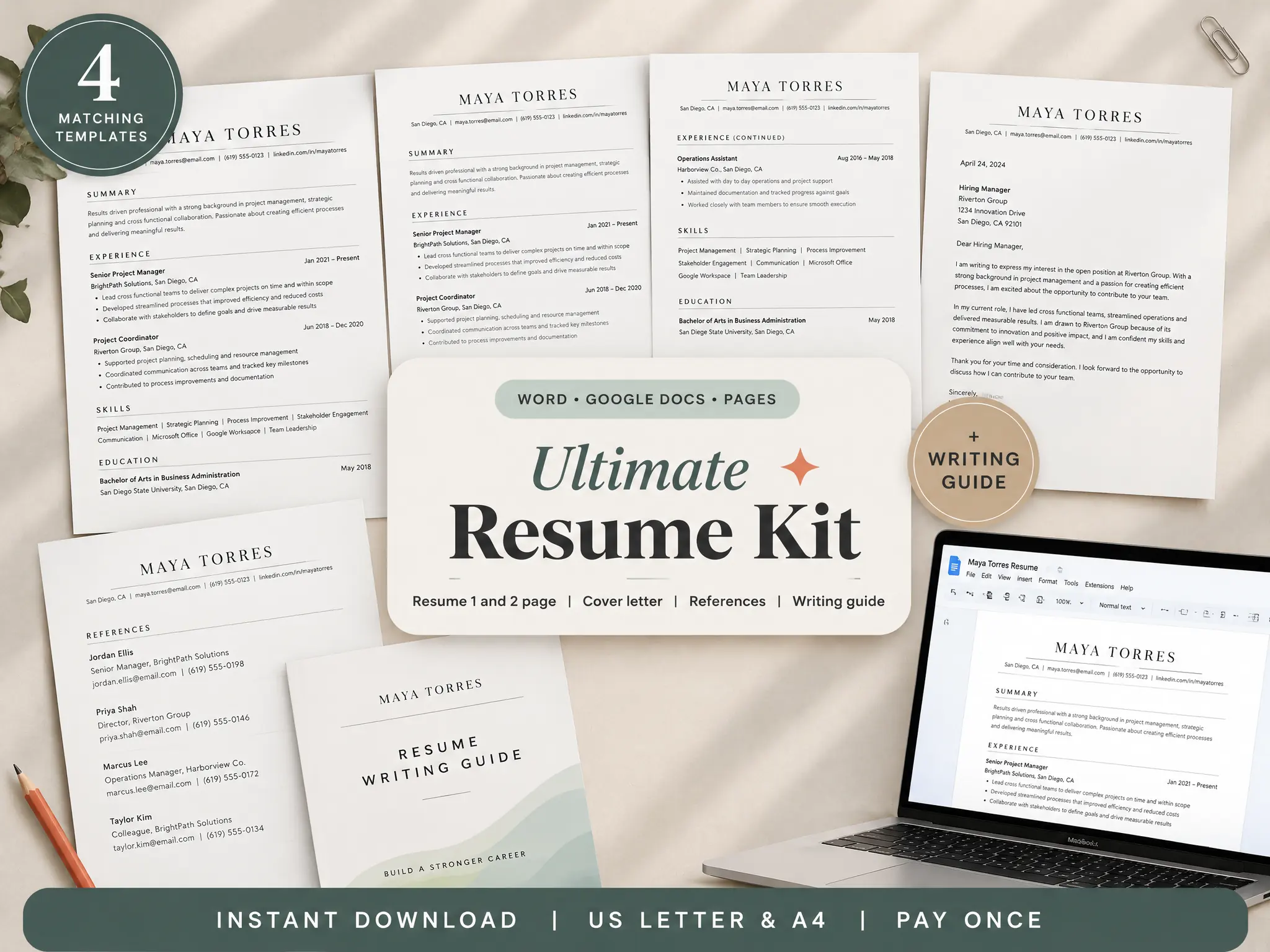
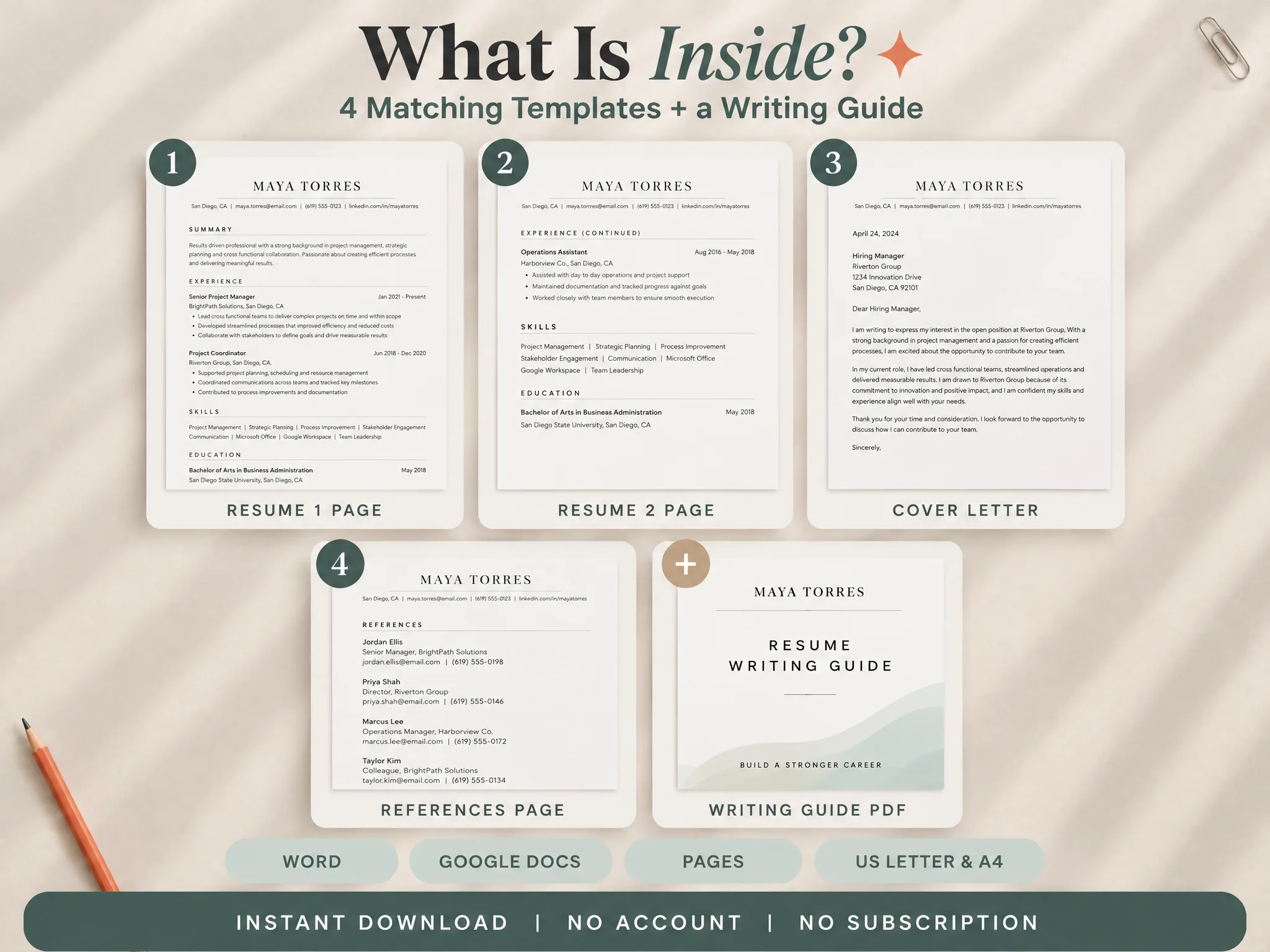
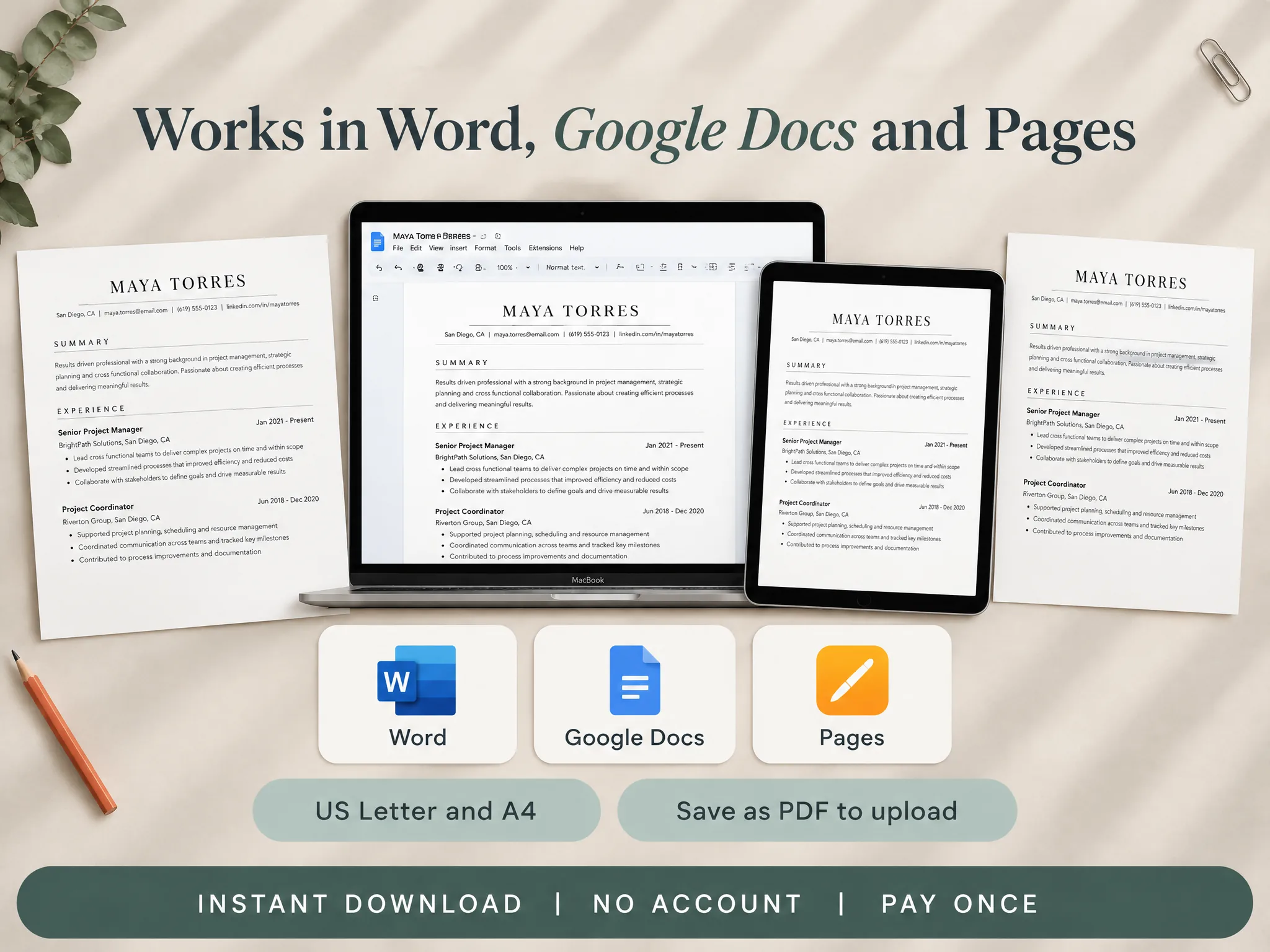
A resume template can give you a clean starting page, while the examples and instructions still need to match your actual experience. The Ultimate Resume Kit includes a one-page and a two-page resume template, plus a PDF writing guide. Its listed formats include Word, Google Docs and Pages, with US Letter and A4 sizes.
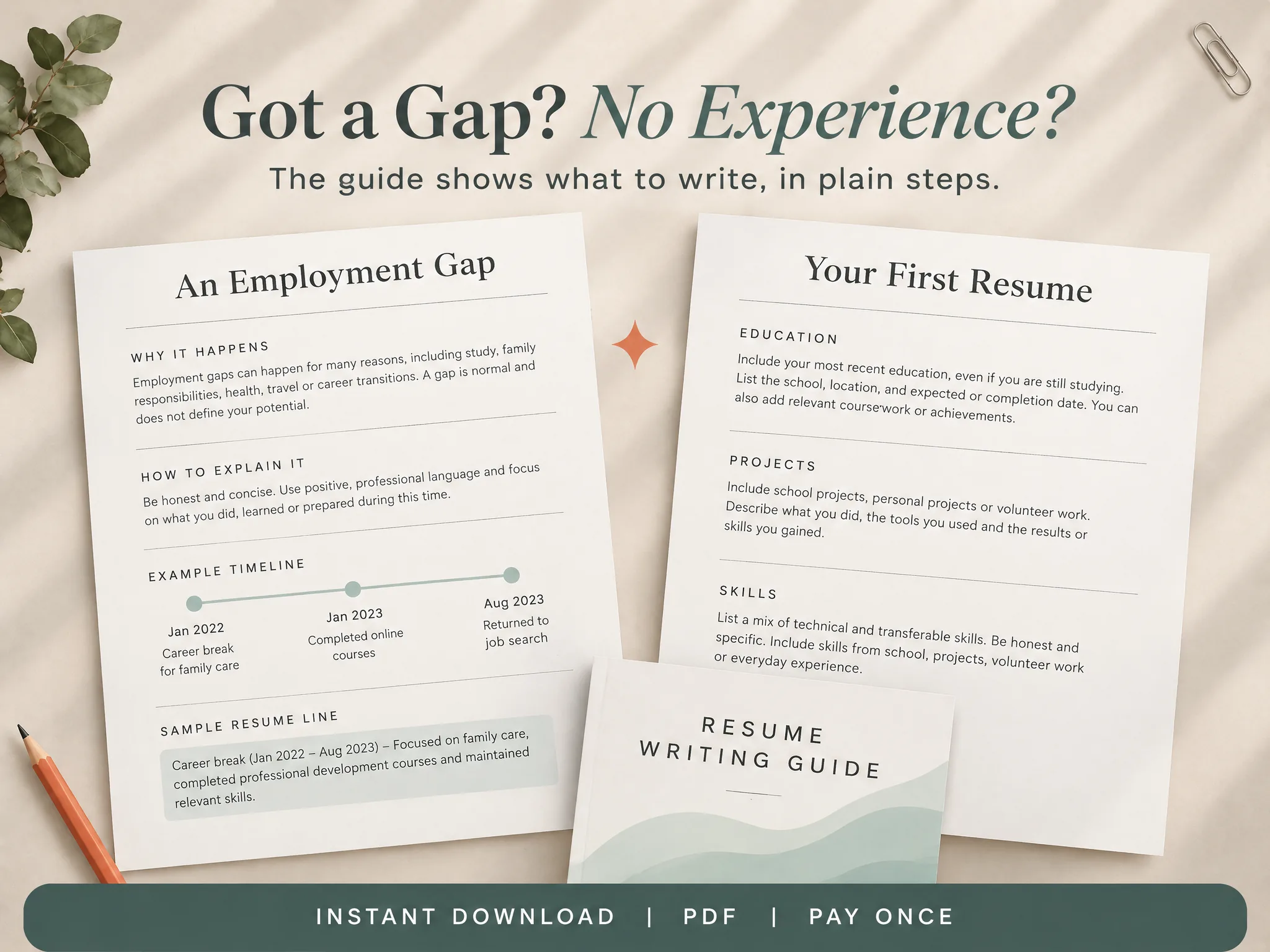
The format is one column with standard headings and sample text to replace. You still need to check the exported file and follow the instructions for each job application. The guide also covers what to write in sections such as employment history, a career gap and a first resume.
If you want matching application pages, the kit also lists a cover-letter template and a references page. See the resume kit and its contents to check whether the included files fit the way you work. For a view of the materials, the guide preview shows the sections covered in its PDF.
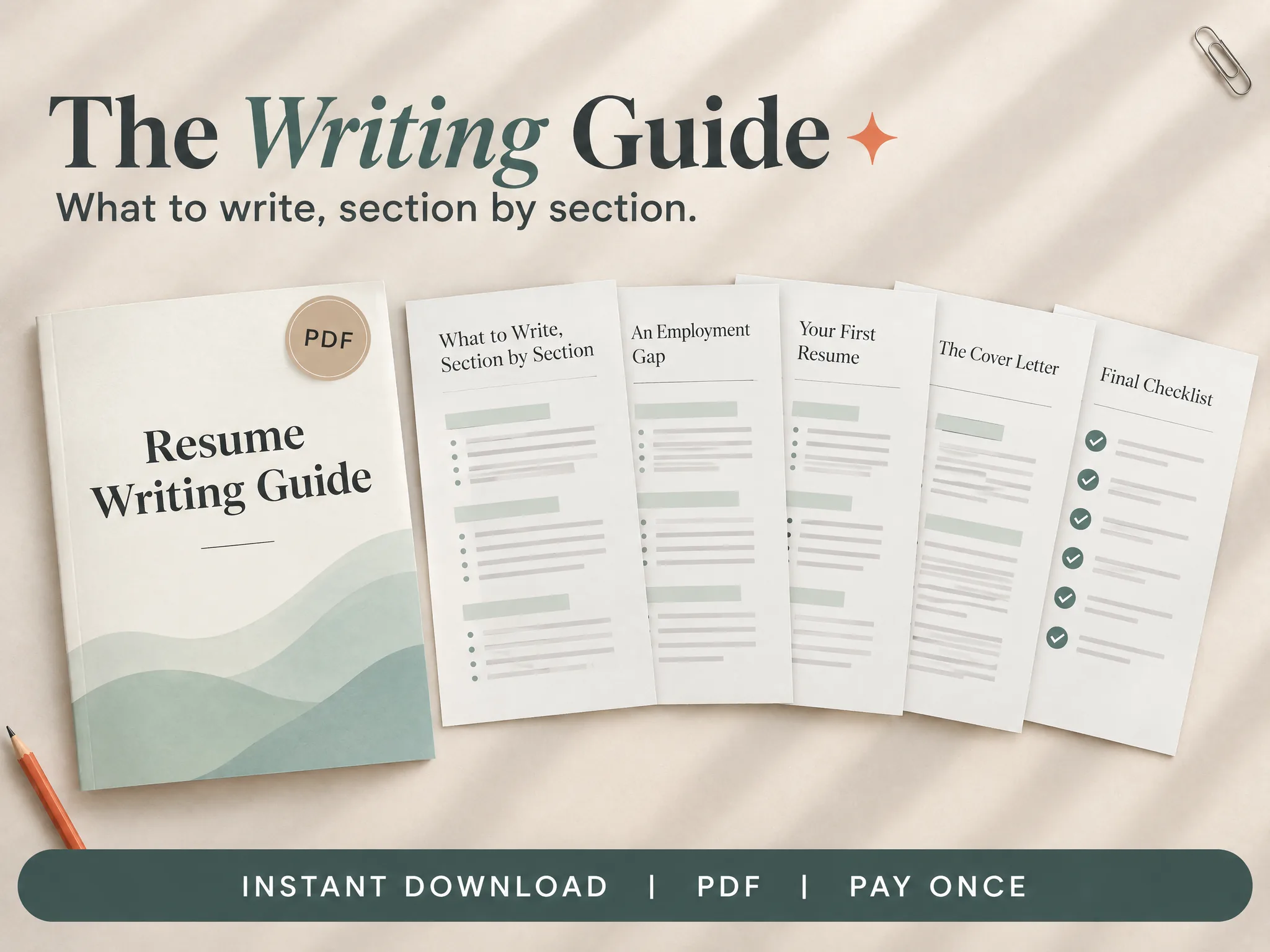
The mockup is a product-page preview. It does not replace testing your own exported resume. Use the same plain-text check whether you start from a template or a blank document.
Why this guidance is practical
This guide draws on published formatting advice from CareerOneStop, the University of Texas at Dallas Career Center, Canva and Greenhouse Support. Their recommendations overlap on clear headings and simple layouts, while the Greenhouse article documents concrete parse failures in its own system. We checked these sources on 19 October 2026. Employer instructions and systems can differ, so inspect the file and the application form you use.
A useful format removes avoidable confusion from the page. The plain-text test gives you one more way to catch it before submission. If you start with a one-column resume template, keep the content truthful and test the exported file in the same way.
Frequently asked questions
What is the most ATS-friendly resume format?
Use a simple, single-column document with real text, familiar headings such as Experience and Education, and a clear reading order. Follow the employer's file instructions. No layout can guarantee a successful parse in every system.
Should an ATS resume be one column or two?
A single column is the safer default for an online application. Greenhouse lists columned layouts among formatting issues that can lead to a partial parse. Keep essential information in one top-to-bottom path.
Is PDF or DOCX better for an ATS?
Use the file type the employer requests. If the application accepts either, choose a text-based PDF or DOCX and check the portal's preview after upload. Greenhouse documents support parsing for both PDF and DOCX, but other employers may use different systems or settings.
Are Canva resumes ATS-friendly?
Some exported resumes may be readable, but the platform name does not tell you whether a specific file will parse correctly. Check that the text is selectable, appears in a sensible order, and follows the employer's upload instructions.
How can I test if my resume is ATS-friendly?
Copy the resume text into a plain-text editor. Check that your name, contact details, headings, dates and bullets appear in the intended order. Then upload it and review any fields the application fills in. This is a useful check, not a guarantee.
Can a resume template guarantee that I pass an ATS?
No. A clean format can make the document easier to parse, but employers choose their systems and screening settings. The resume still needs accurate details and evidence that matches the role.